Yildun runs a shell inside a Tarazed-backed terminal session. Use its interactive console for shell input, or capture a terminal screen without a window for scripts and tests.
Install and launch
You need Ruby 3.1 or newer. Install the gem and check its version:
gem install yildun
yildun --version
The gem installs its compatible Tarazed dependency. If you use a Gemfile, add gem "yildun", run bundle install, and prefix commands with bundle exec.
Launch Yildun from an existing terminal:
yildun
Yildun starts the default profile. Unless you change its settings, that is the shell named by $SHELL, or sh when $SHELL is unset, with the -l login-shell argument. The session starts in your current directory.
Run your first command
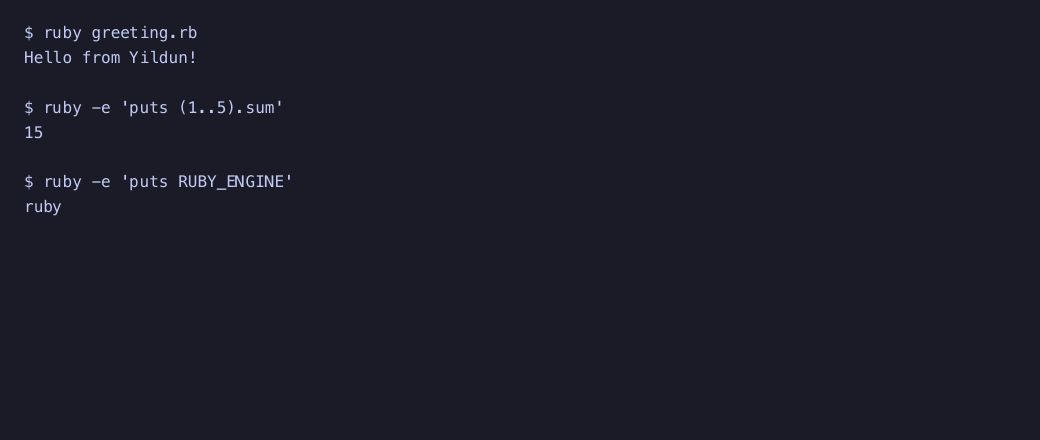
At the shell prompt inside Yildun, type:
ruby -e 'puts "Hello from Yildun!"'
ruby -e 'puts (1..5).sum'
ruby -e 'puts RUBY_ENGINE'
Press Enter after each command. Their output is Hello from Yildun!, 15, and your Ruby engine name. Type exit at the shell prompt to return to the terminal that launched Yildun.
Capture a screen without a TTY
In a script or CI job, use headless mode:
yildun --headless --command 'printf "hello\n"' \
  --columns 20 --rows 3 --timeout 1
This prints a terminal screen containing hello. Output includes blank screen rows; it is a screen snapshot rather than a stream of the child process’s output. See Headless sessions for screen fixtures and scripted input.
Terminal and platform requirements
The interactive console needs both standard input and standard output connected to a TTY. Run it in a terminal, rather than piping its input or redirecting its output. It uses the terminal’s current dimensions and follows window resizing.
The commands in this guide use a POSIX shell on macOS or Linux. Tarazed also has a ConPTY backend for 64-bit Windows. On Windows, configure an installed shell, such as a profile with "command": ["cmd.exe"]; the default sh -l profile and these POSIX command examples are not Windows shell defaults. ConPTY must be available on the Windows release in use.
Troubleshooting
| Symptom | What to check |
|---|---|
Yildun needs a TTY for interactive mode |
Launch from a terminal, or add --headless for automated use. |
| Shell cannot be started | Check $SHELL, the profile’s command, and any configured cwd. The executable and directory must exist. |
invalid settings |
Correct the syntax of settings.jsonc. See Configuration. |
| Headless output is missing or incomplete | Increase --timeout, and allow enough --rows and --columns for the output. |
| Colors or configured font do not appear | The current console renders screen text. Appearance settings are not applied by this renderer. |
Continue with Interactive usage, Headless sessions, or Configuration.