Heze previews Markdown documents and static SVG files through a native window or terminal backend. It also exports PNGs without opening a window.
Install Heze
You need Ruby 3.2 or newer. Check your version, then install the gem:
ruby --version
gem install heze
For a source checkout, run bundle install, then use bundle exec exe/heze in place of heze in this guide.
Native previews require a graphical session:
| Platform | Requirements |
|---|---|
| macOS | A desktop session with Metal support |
| Linux | Wayland/EGL or X11/GLX graphics libraries and a running display session |
| Windows | 64-bit Ruby and Windows 10 graphics APIs |
| Headless export | No graphical session required |
Preview your first document
- Save the following text as
notes.mdin your editor. - Open a terminal in the same directory and run
heze notes.md. - Keep your editor open beside the preview. Change a sentence and save the file; the preview reloads the document.
# Project notes

Preview a document while editing it.

- Write a short outline
- Add a code example

```ruby
puts "Hello from Heze"
```

> Save the file to refresh the preview.
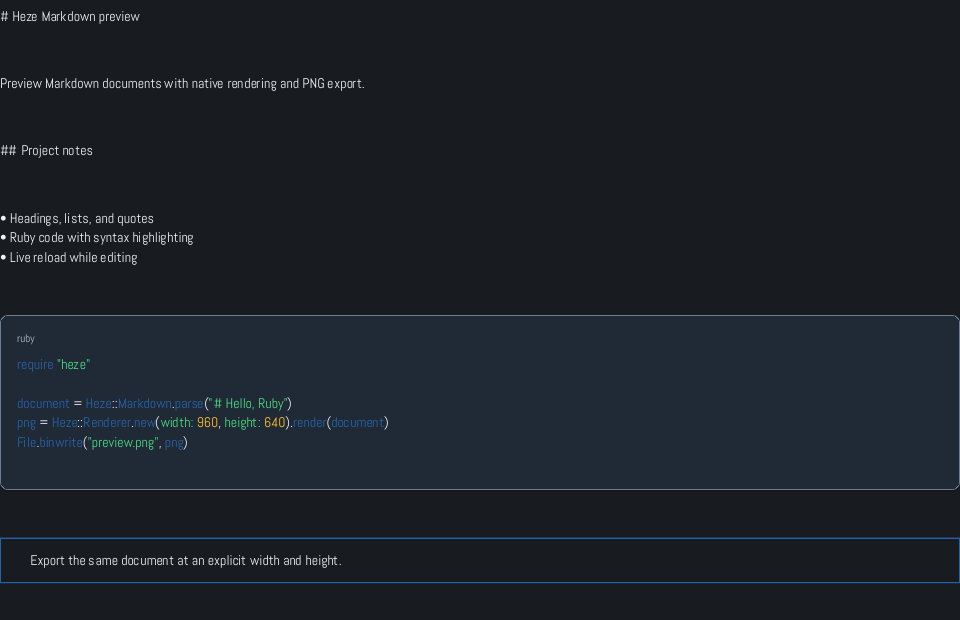
The screenshot shows the current renderer. Heze preserves the heading markers and list text, highlights fenced code, and frames quotes. Read previewing documents for its Markdown limitations and directory browser.
Save a PNG
Export the document at a chosen size:
heze notes.md --width 1200 --height 800 --export notes.png
This creates notes.png in the current directory and exits. The image captures one viewport; increase the height for longer documents. See PNG export for themes, repeated exports, and the Ruby API.
If a window does not appear
Start Heze from an interactive terminal. Piped or redirected output produces a short path summary rather than opening a window. --backend headless also prints a summary; use --export to create an image.
If a native backend cannot open, Heze reports native preview unavailable and falls back to that summary. Try a terminal preview, or export a PNG. Use --no-watch to return immediately after the summary, or press Ctrl+C to stop a waiting watcher.
For file not found, check the path and quote filenames containing spaces. A directory must contain at least one lowercase .md file. For encoding errors, save the document as UTF-8; UTF-8 BOMs are accepted, and Menkar can decode other text encodings, including Windows-31J.
Continue with previewing documents, PNG export, or SVG files.